.png)
Configuring Auto Start UpUpdated 3 months ago
Garmin changed the way data fields start. For the best CycliqPlus Edge experience, tap your ride profile as soon as your Garmin turns on so your cameras connect quickly.

Auto-start lets your Garmin Edge wake and power up your Fly cameras the moment the Edge turns on. For this to work, each camera has to keep its Bluetooth visible even while it’s switched off — Cycliq calls this BLE Always Visible (shown as Bluetooth On: All the time in the mobile app).
The easy way: let your Edge set it up
On the latest camera firmware, CycliqPlus Edge can switch a camera into BLE Always Visible for you — no cable or phone required. When you pair or connect a Fly6 Pro or Fly12 Sport that isn’t already always-visible, the Edge shows this prompt:

Tap the green tick (✓) to turn Auto-Startup on. That’s all there is to it.
- Fly6 Pro — the prompt appears as soon as the camera connects.
- Fly12 Sport — the prompt appears a moment later, once the camera reports its firmware version. It only shows on the latest Fly12 Sport firmware; if you never see it, update the camera with CycliqPlus Desktop (below) and try again.
Set or change it from the device menu
You can turn BLE visibility on or off at any time using the buttons in the Edge’s device menu:
- Open the CycliqPlus Edge data field settings and choose Devices.
- Select your camera, then tap Pair/manage.
- Tap BLE always visible to enable Auto-Startup, or BLE when camera on to save camera battery (Auto-Startup and remote turn-on won’t work in this mode).
The same menu has buttons for everyday management:
- Reconnect — retry a camera that didn’t connect.
- Turn on — power up a connected camera that’s switched off (needs BLE Always Visible).
- Clear slot — forget a camera so you can pair a different one.
Manual setup (older firmware)
If a camera doesn’t show the on-device prompt yet, set BLE visibility with the Cycliq apps instead.
Fly6 Pro — via CycliqPlus Mobile
- Pair your Fly6 Pro in the mobile app.
- Go to Settings → System Configuration.
- Under Bluetooth On, choose All the time.

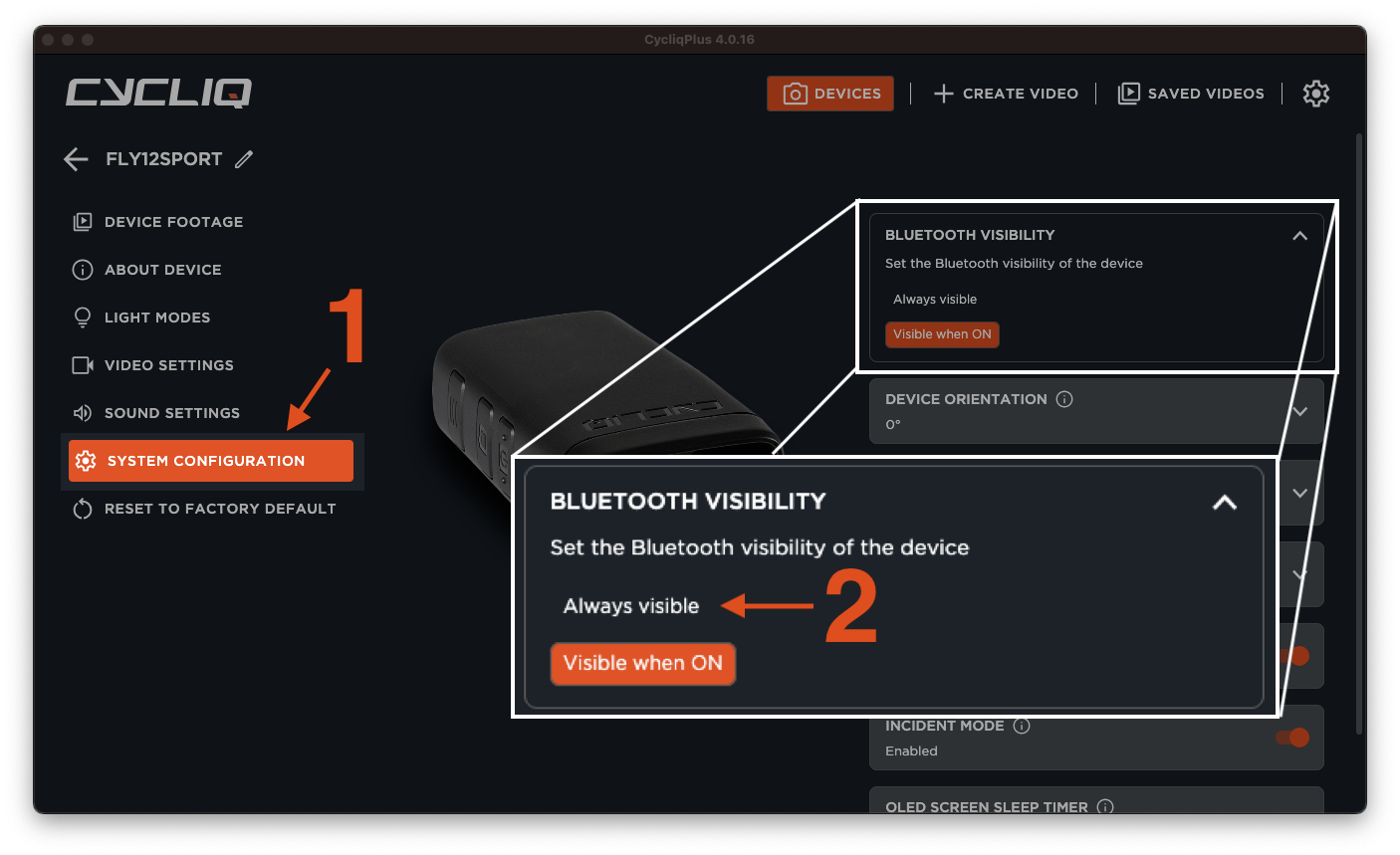
Fly12 Sport — via CycliqPlus Desktop
- Connect your Fly12 Sport to your computer via USB.
- Open CycliqPlus Desktop (update to the latest version if prompted — cycliq.com/software). Updating here also installs the latest camera firmware, which unlocks the on-device prompt above.
- Select your device → System Configuration.
- Set Bluetooth Visibility → Always Visible.
Verify auto-start
- Turn off your Fly cameras and your Garmin Edge.
- Turn on your Edge and tap your ride profile, with the CycliqPlus Edge data field on a data page.
- Within about 60 seconds, your cameras should power up and connect automatically.
If auto-start is inconsistent
- Open Devices, select the camera, and tap Reconnect.
- Re-check that the camera is set to BLE always visible (steps above).
- Make sure your Fly camera batteries aren’t critically low.
- Power-cycle your Edge and try again near the cameras.