.png)
Configuring SRAM AXS button actionsUpdated 3 months ago
You can map CycliqPlus Karoo actions to your SRAM AXS buttons — such as Blips or the buttons on your shifters — so you can control your Fly devices without taking your hands off the bars. Cycle light modes, start or stop recording, trigger an incident, or take a photo, all from a button you already use.
This guide assumes your SRAM drivetrain and buttons are already paired and configured on your Karoo. If you haven’t set them up yet, follow Hammerhead’s guide on controlling Karoo with SRAM AXS controllers first.
Assign a CycliqPlus action to a button
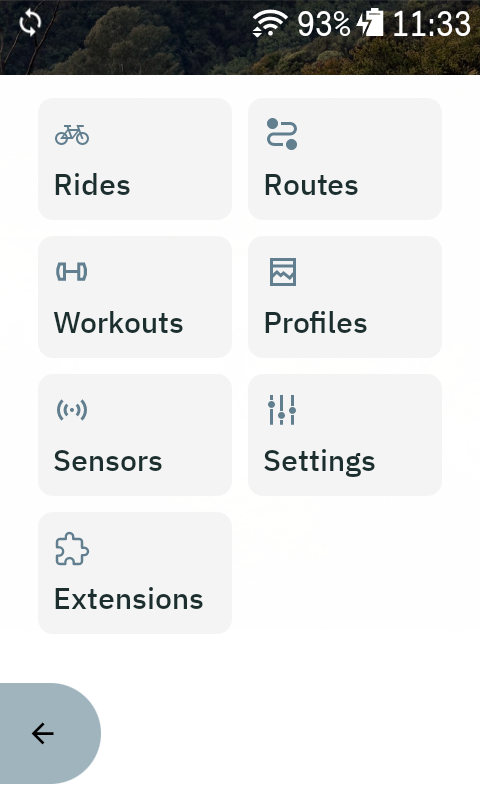
- From the Karoo home screen, open Sensors.
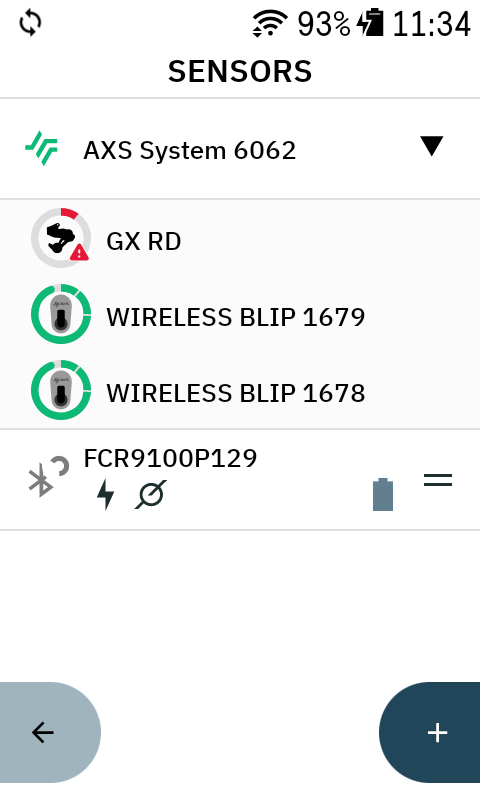
- Select your AXS system (your drivetrain / AXS buttons) from the sensor list.
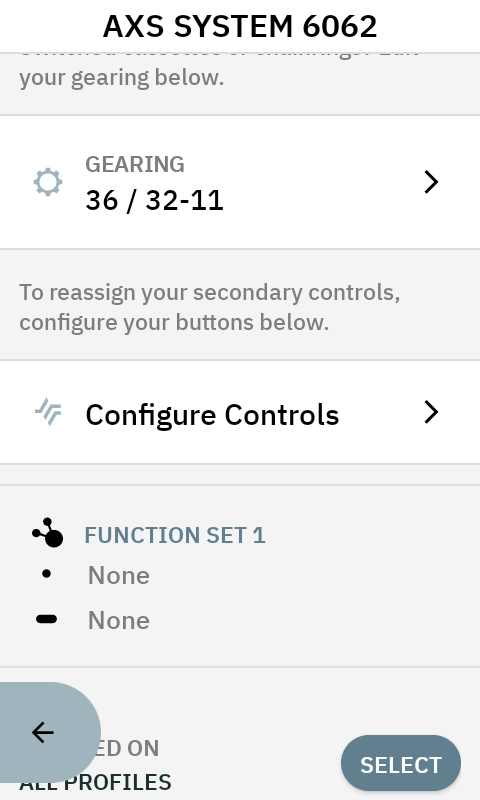
- Scroll down and tap Configure Controls.
- Press the button you want to assign so the Karoo knows which control to map, then choose Karoo Action.
- Scroll down to CycliqPlus Karoo and select the action you want the button to perform, then confirm to save.
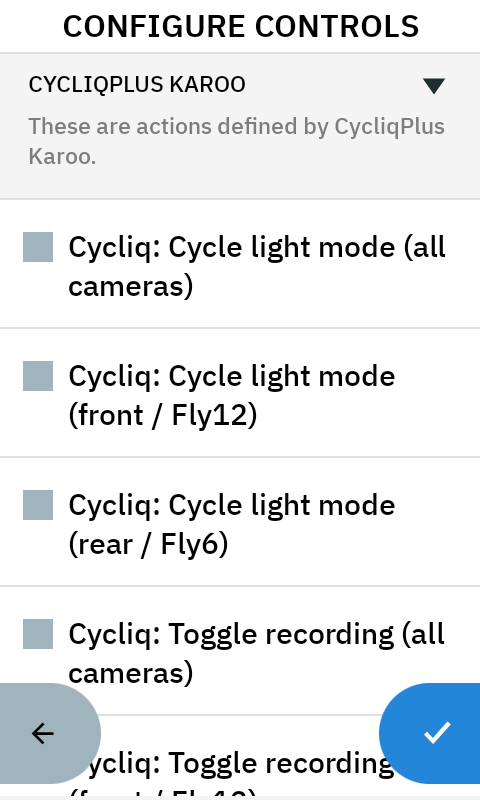
Repeat for any other buttons you’d like to use.
Actions you can assign
Each action can target all cameras, just the front (Fly12), or just the rear (Fly6):
- Cycle light mode — step through the light modes, and off, on the chosen device(s), or all devices at once.
- Toggle recording — start or stop recording.
- Trigger incident — lock the current footage so it isn’t overwritten.
- Take photo — capture a still mid-ride.
If you have any actions you think would be good to use let us know and we'll consider adding more!
Tips
- Use an all cameras action to control both Fly devices with a single press.
- Assign different actions to different buttons — for example, one to cycle light modes and another to take a photo.
- Your Fly devices must be connected to CycliqPlus Karoo for button actions to take effect.
- Only use button actions when it’s safe to do so. Keep your eyes up and hands steady.