.png)
Installing CycliqPlus KarooUpdated 2 months ago
CycliqPlus Karoo has minimum requirements based on your Hammerhead Karoo hardware. Please click here to read more about whether your Karoo or Fly device is compatible.
Step 1 — Install the extension
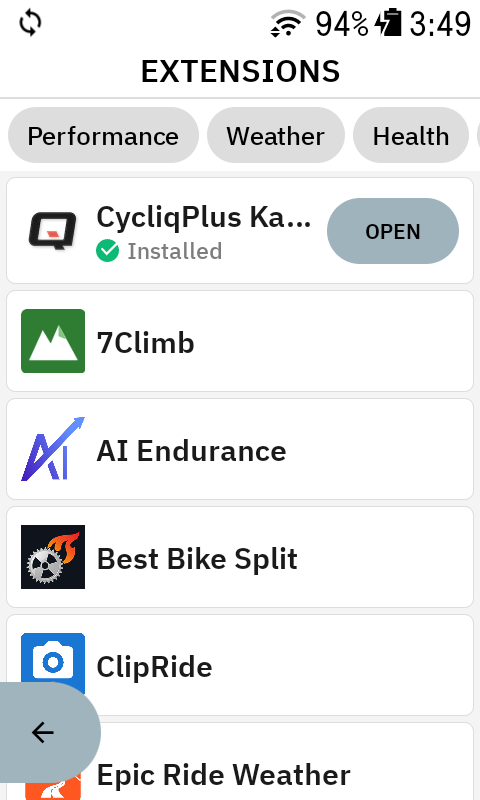
CycliqPlus Karoo can be installed directly from the Karoo Extensions list! Just go to extensions, and tap on CycliqPlus Karoo to get started.
Step 2 — Open CycliqPlus Karoo
Once installed, CycliqPlus Karoo appears in your Karoo’s Extensions list. Tap it to open.
Step 3 — Pair your Fly devices
- Power on your Fly12 Sport and/or Fly6 Pro.
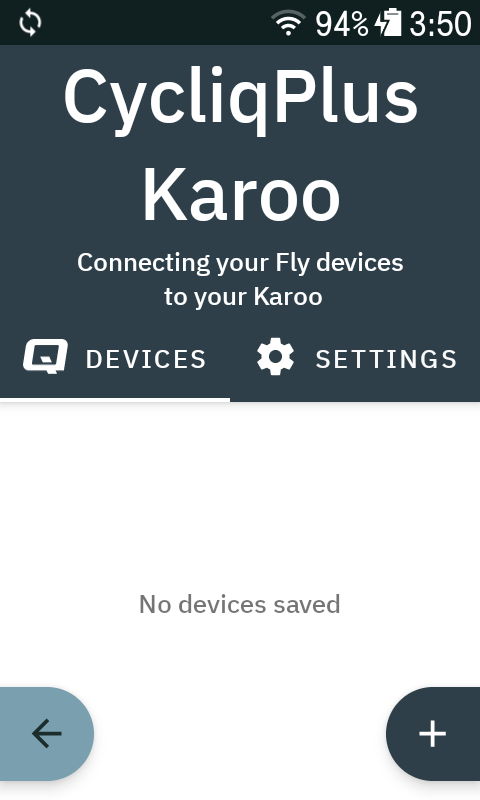
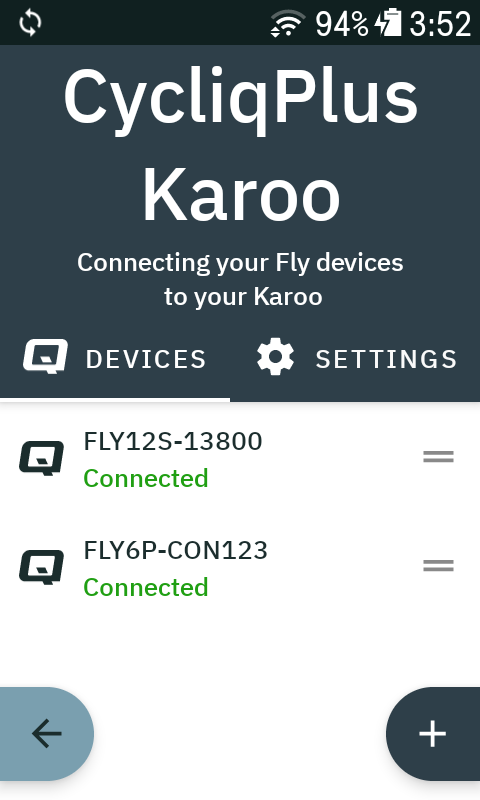
- On the CycliqPlus Karoo Devices screen, tap the + button to add a device.
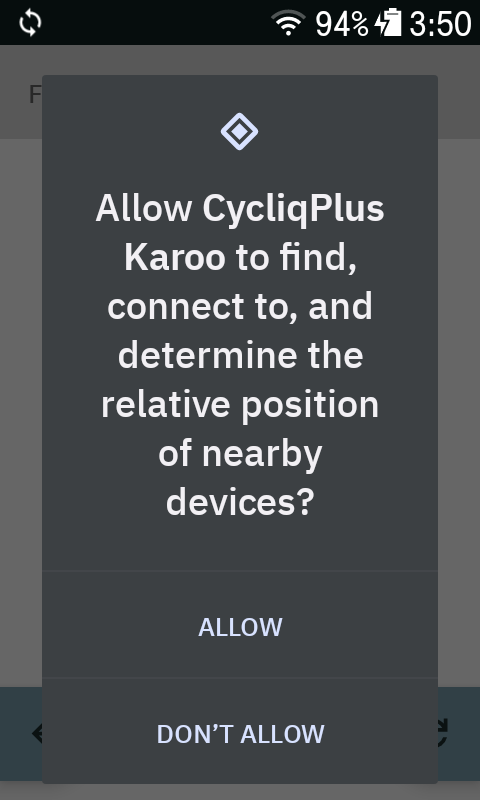
- The first time, your Karoo asks CycliqPlus Karoo for permission to find, connect to, and determine the relative position of nearby devices — tap Allow. This is required for the extension to discover and connect to your Fly devices over Bluetooth.
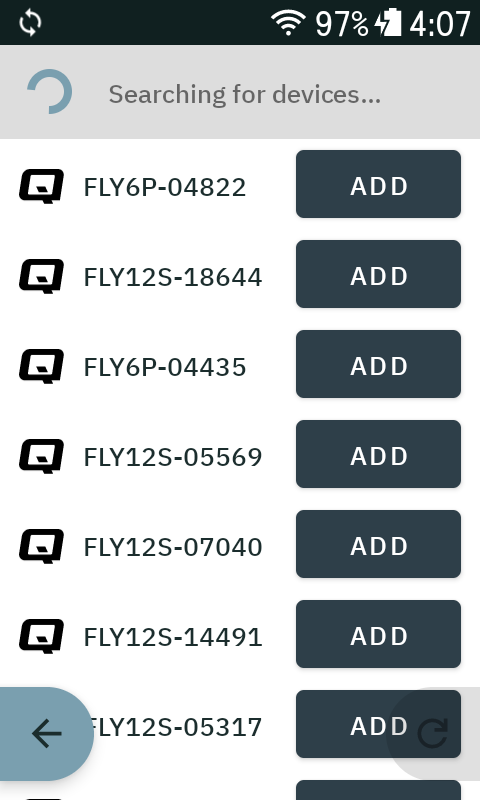
- CycliqPlus Karoo scans for nearby devices. Tap a device to add it, and repeat for your other slot if you have both a Fly12 Sport and a Fly6 Pro.
You’ll know it worked when each device shows as Connected on the Devices screen, with its battery level.
If devices don’t appear
- Ensure each device is powered on.
- Confirm it’s not connected to your phone through CycliqPlus Mobile (Cycliq devices do not support multiple simultaneous connections).
- Move within a few metres and Search again.
- Power-cycle the Fly device and retry.
Step 4 — Add it to your ride profile
Add the CycliqPlus Karoo data field to a ride page so you can see status and control your cameras while you ride.
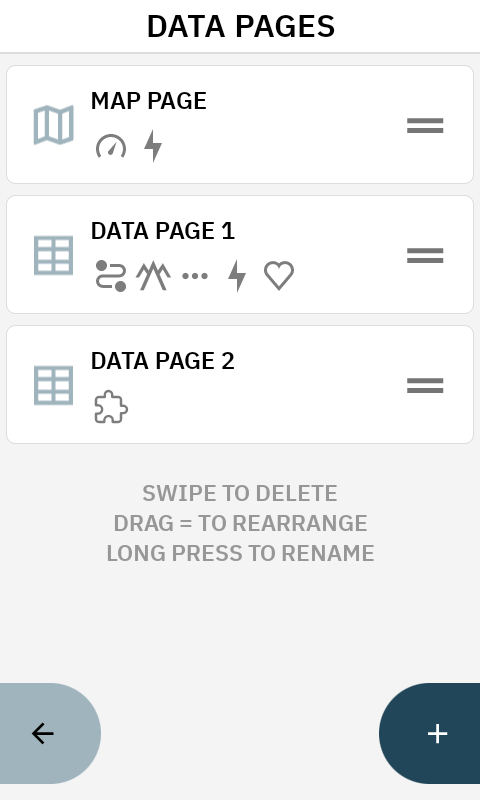
- On your Karoo, open the Main Menu and go to Profiles → [Your Profile] → Data Pages.
- Add a new page and set the layout to 1 field (required).
- Select the field and choose CycliqPlus Karoo from the data list, then select the 'Device Controls' data field.
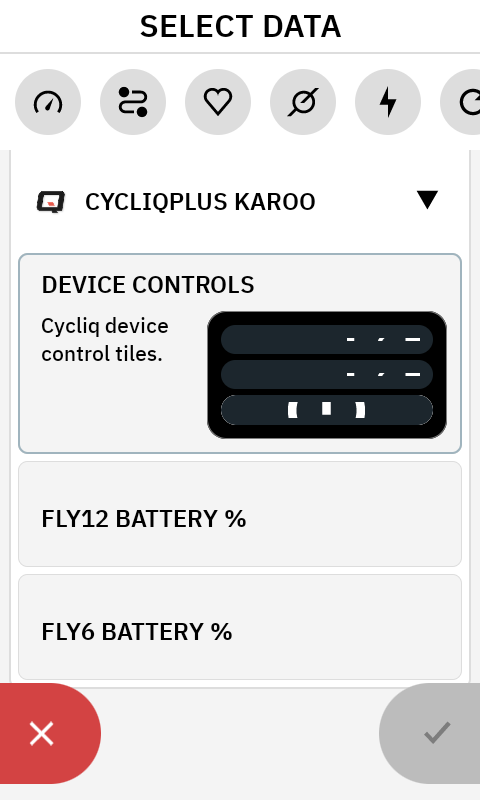
CycliqPlus Karoo Device Controls are designed to use a full page on its own. If you put other data fields on the same page, functionality will break.