Connecting Devices in CycliqPlus MobileUpdated 25 minutes ago
Adding a device to CycliqPlus
Connect your Cycliq camera to the CycliqPlus app so you can check its battery and storage, control recording, and browse your footage.
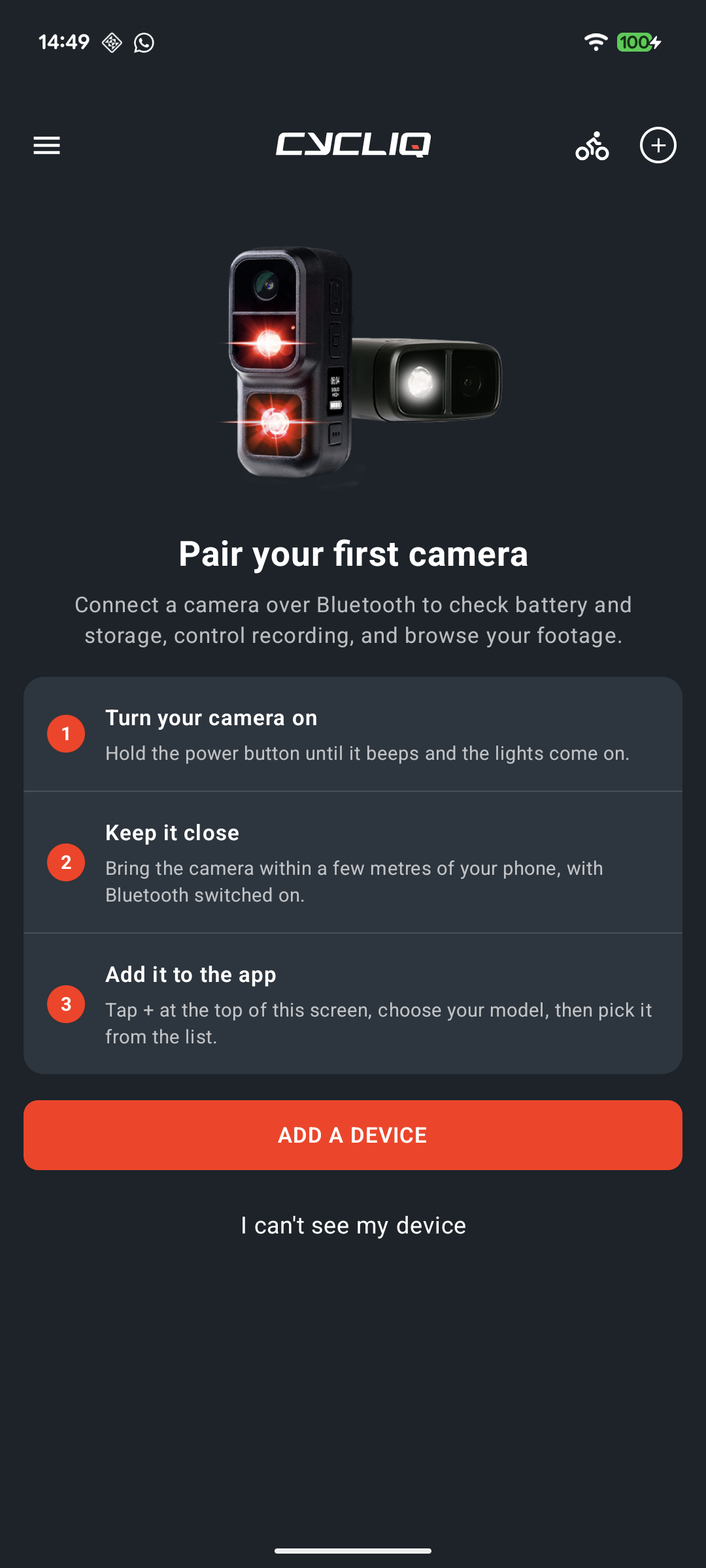
Before you start
- Turn the camera on. Its Bluetooth only starts advertising once it is powered up.
- Keep the camera within a few metres of your phone.
- Turn on Bluetooth on your phone.
- CycliqPlus can keep several cameras connected at once, up to a set limit. If you are at the limit, disconnect one camera first to add another.
Add the camera
- Open CycliqPlus.
- Tap the + at the top of the screen to open Add a device.
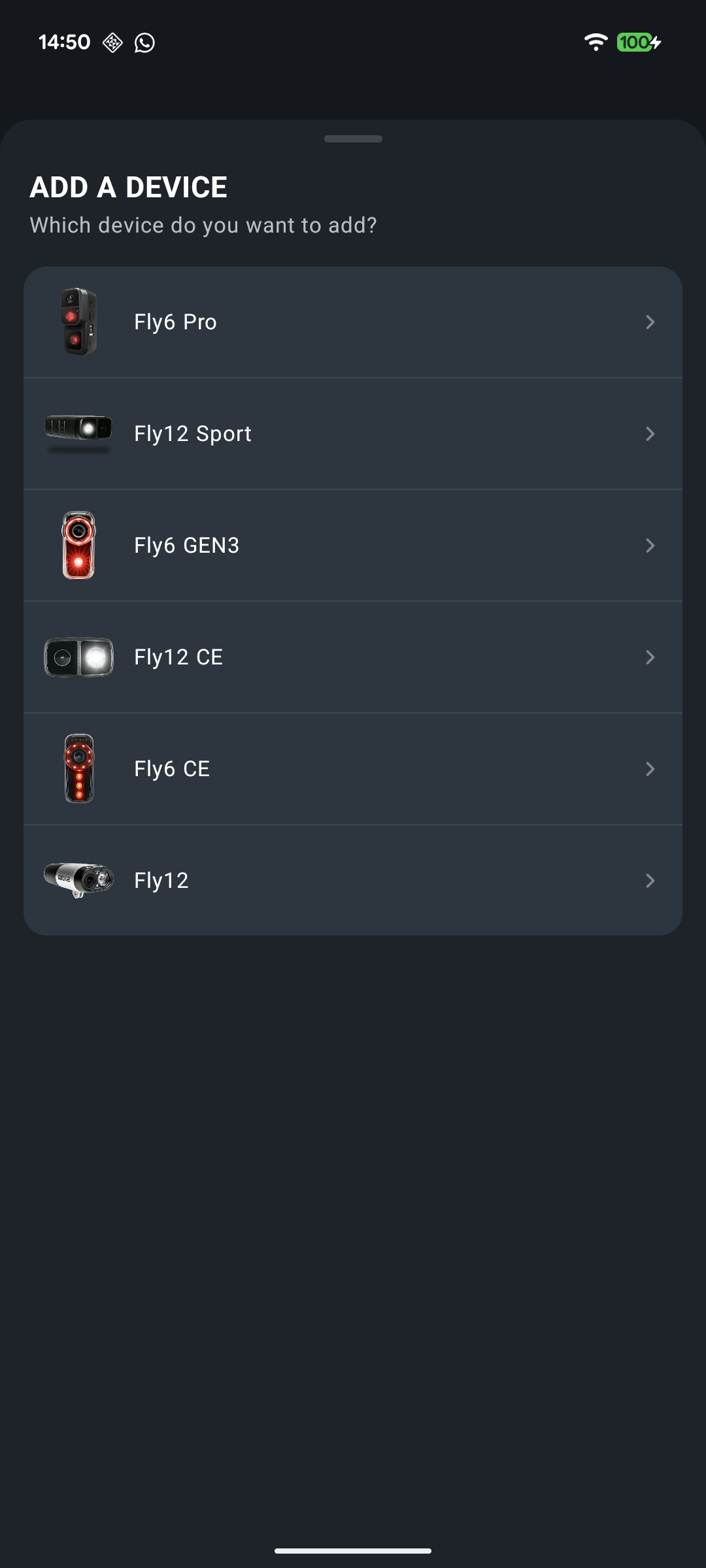
- Choose your camera type: Fly6 Pro or Fly12 Sport.
- CycliqPlus searches for nearby cameras. Wait a few seconds. Cameras appear in the list as they are found.
- Tap your camera in the list to pair it.
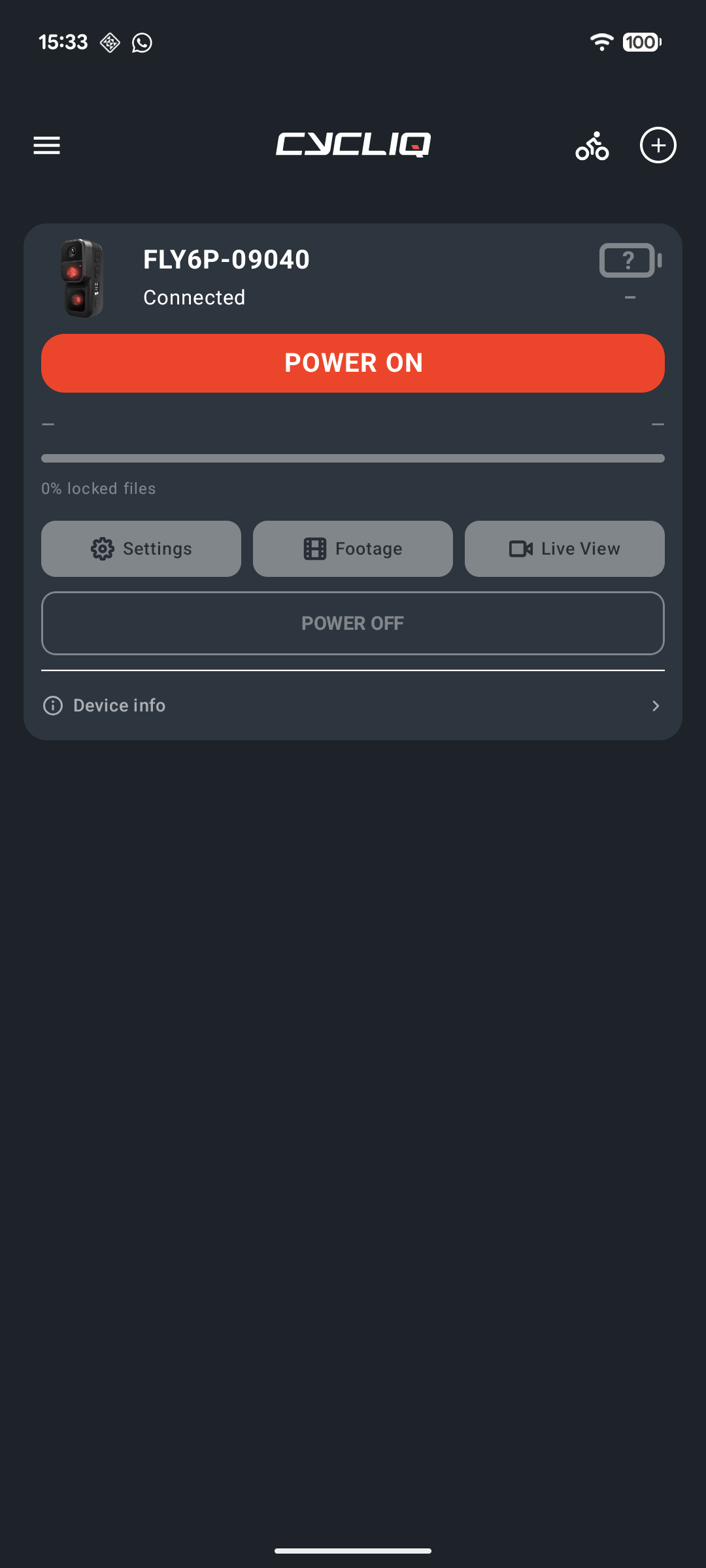
- Once paired, the camera appears on your home screen as a device card. It connects automatically each time you open the app.
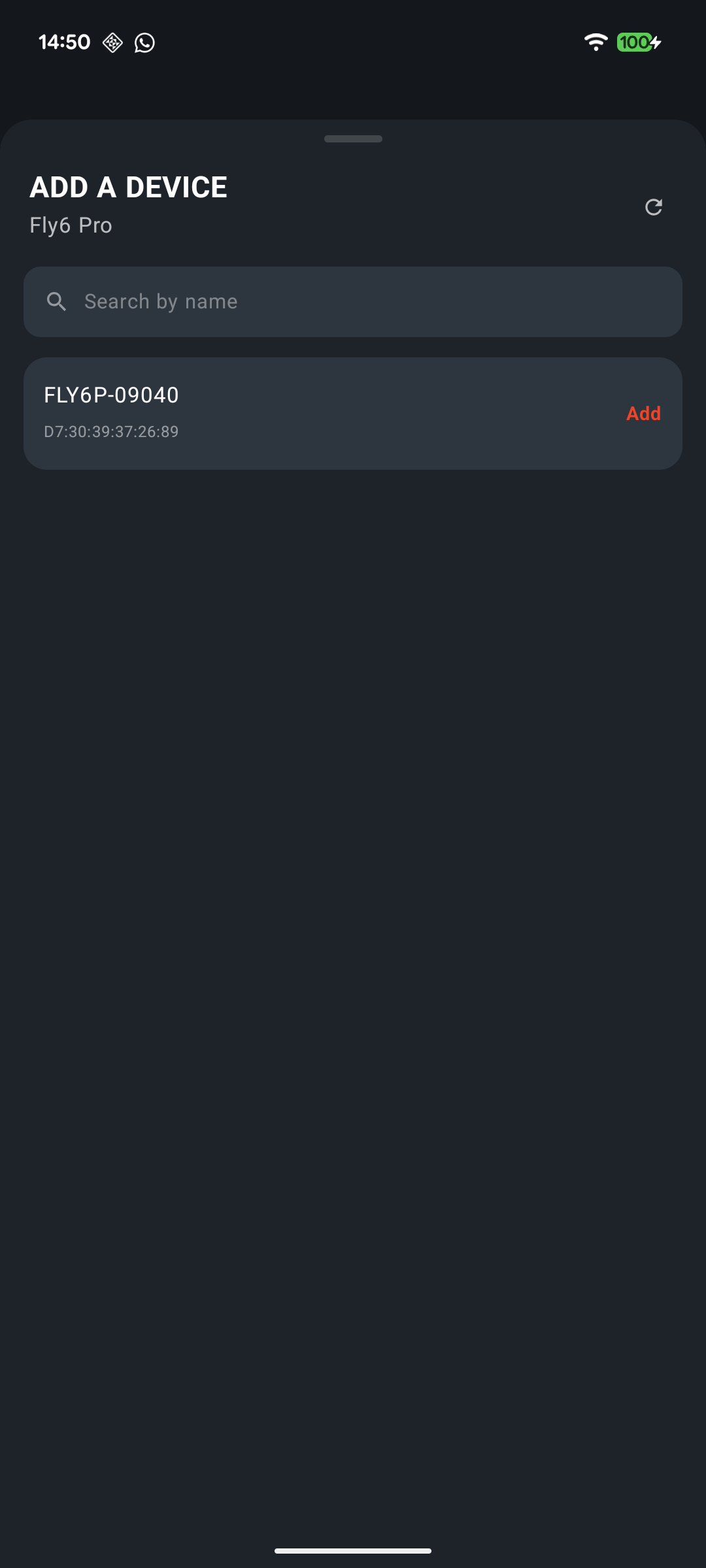
If nothing appears, make sure the camera is on and nearby, then tap the refresh button in the sheet to search again.
Name your camera
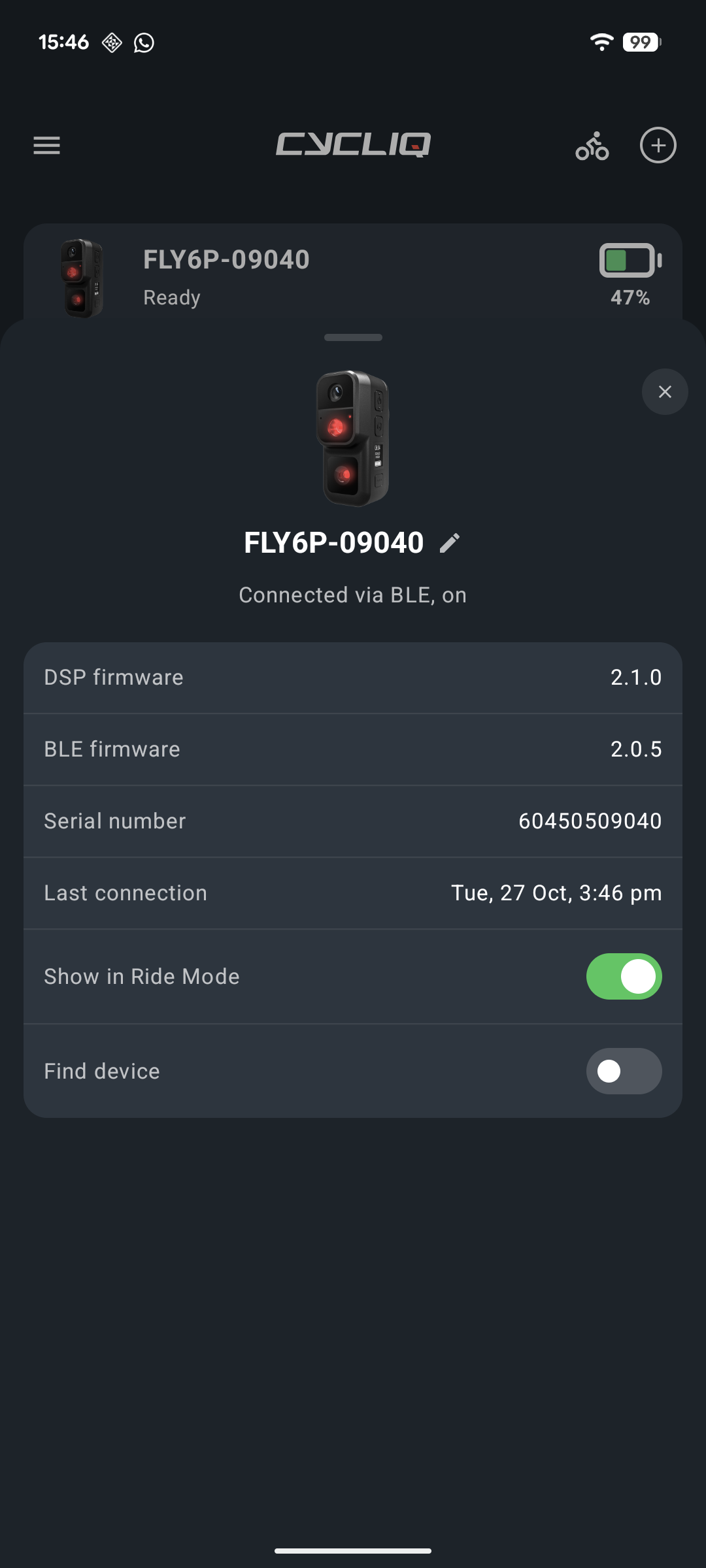
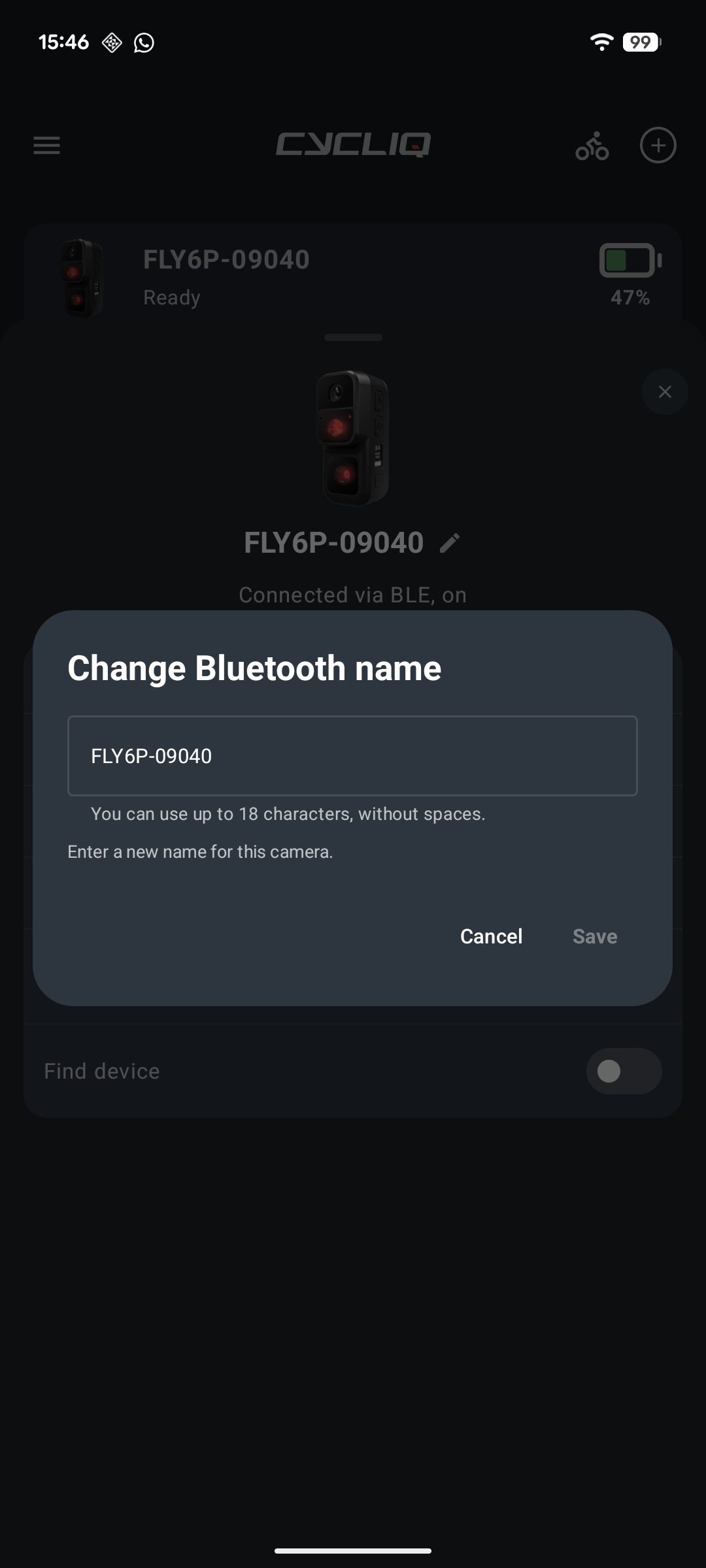
You can change a camera's name from its device info screen. This changes the camera's Bluetooth name, the name it shows when your phone scans for it.
- On the device card, tap Device info.
- Tap the pencil icon next to the camera's name.
- Type the new name. You can use up to 18 characters, without spaces.
- Tap Save.
Registering your camera
Registering is separate from adding it to the app. It links the camera to your Cycliq account using its serial number.
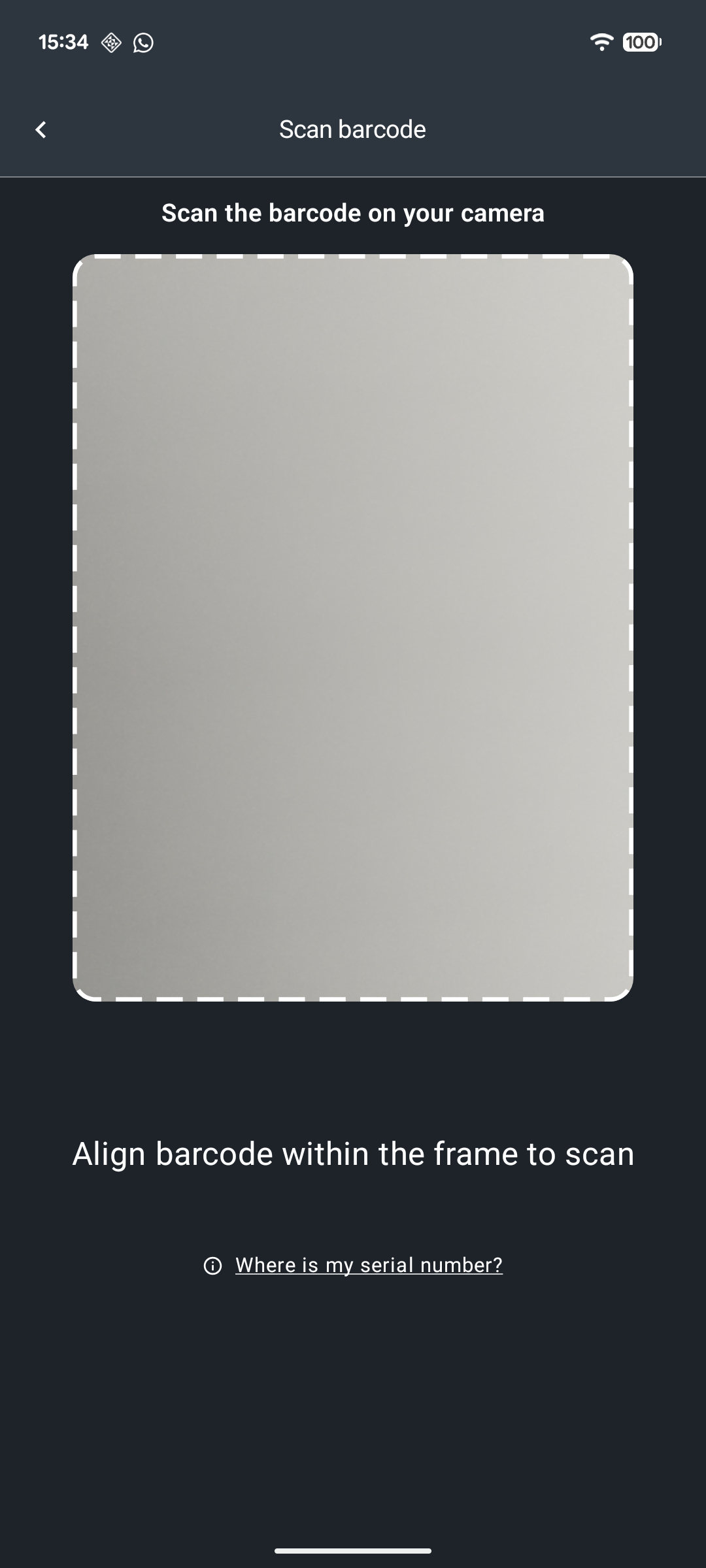
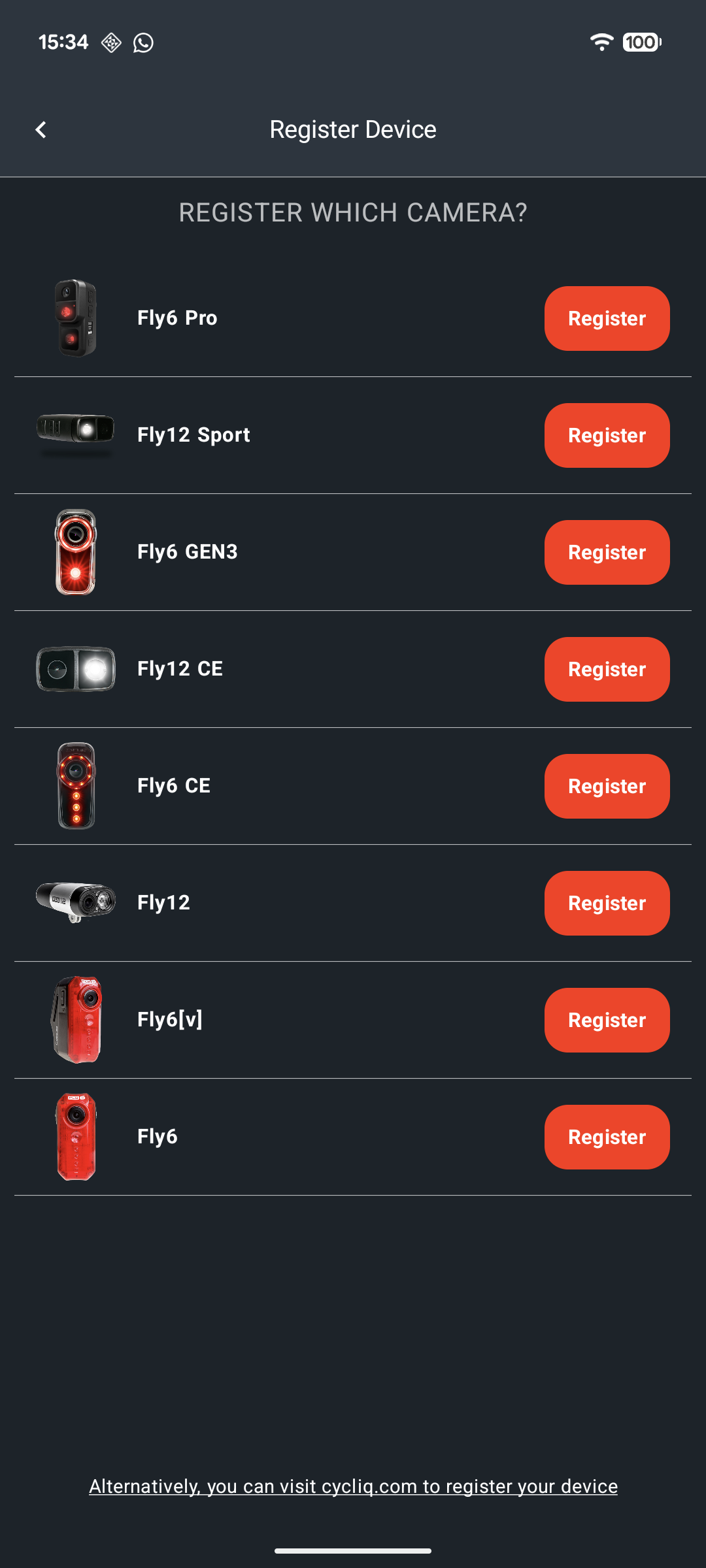
- Open the side menu and tap Register Device.
- Choose your camera, then scan the barcode with your phone camera. Or enter the serial number by hand.
- The barcode is usually on the camera or its packaging. Tap Where to find your barcode if you can't find it.
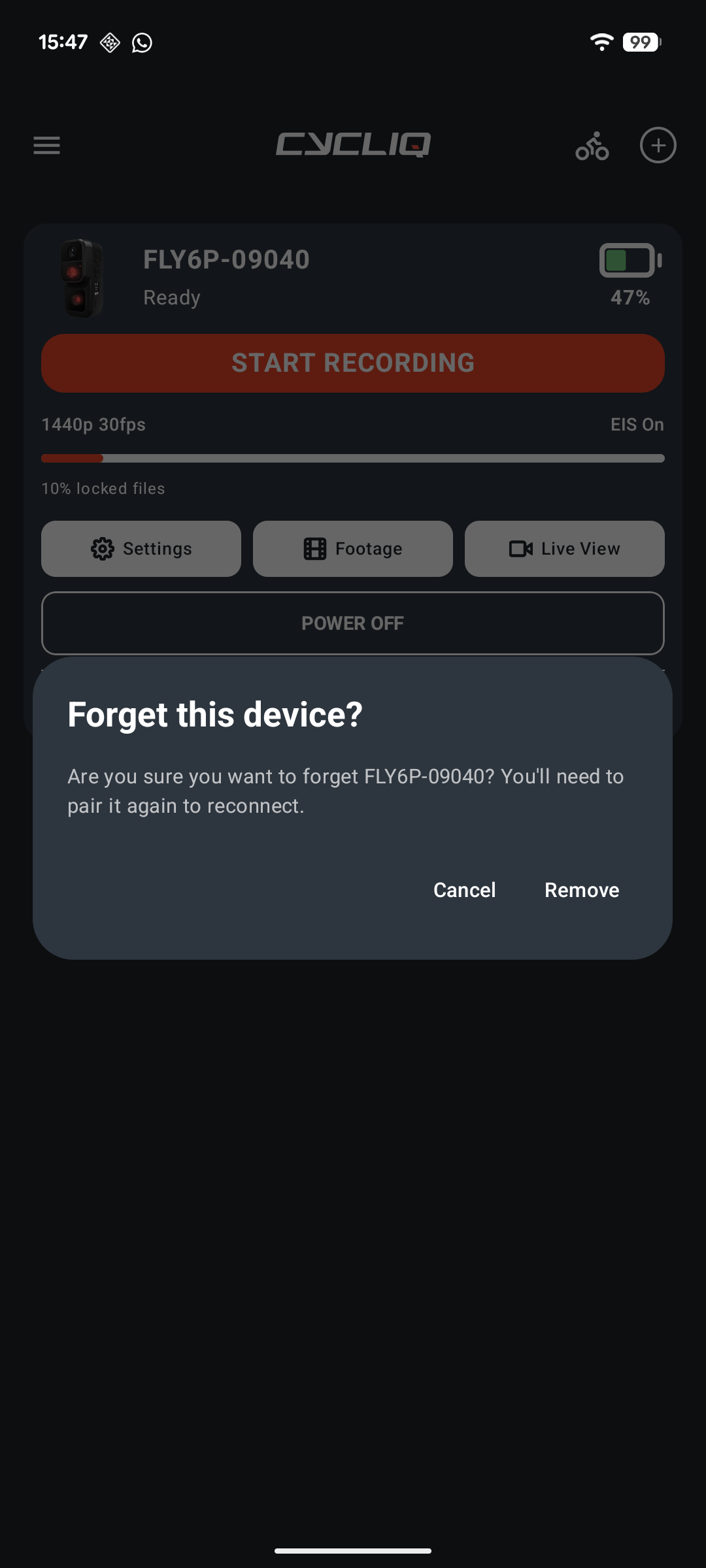
Forgetting a camera
To remove a camera from the app, swipe its device card to the left. A dialog asks Forget this device?. Tap Remove to forget the camera, or Cancel to keep it. You will need to pair it again to reconnect.