.png)
Devices in CycliqPlusUpdated 4 months ago
In the CycliqPlus app we’ve redesigned the way you interact with your Cycliq devices.
- Your footage is now front and centre — when you open a connected device, you’ll land straight in Device Footage.
- Settings are now grouped into simple categories, making it easier to find what you need.
- You can now view information about your device even when it’s offline or disconnected.
- New footage views and Strava Calendar integration make it easier to review and organise your rides.
- Incident Review helps you quickly find and manage important locked footage.
Device Picker
The Devices screen shows all your Cycliq devices that have been plugged in to your computer. Select a device to manage footage, settings, and device information.
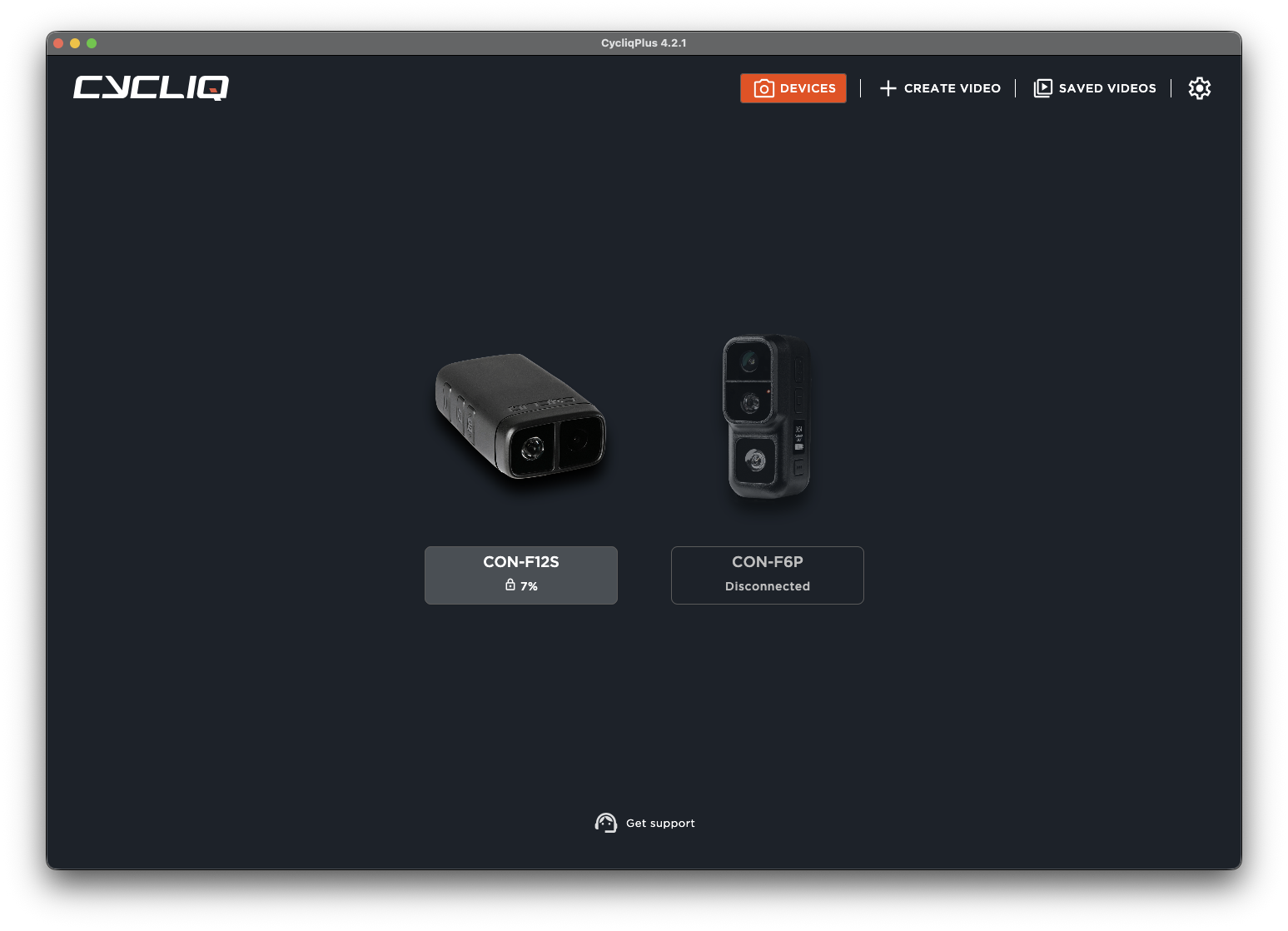
Select and manage your Cycliq device
Device Footage
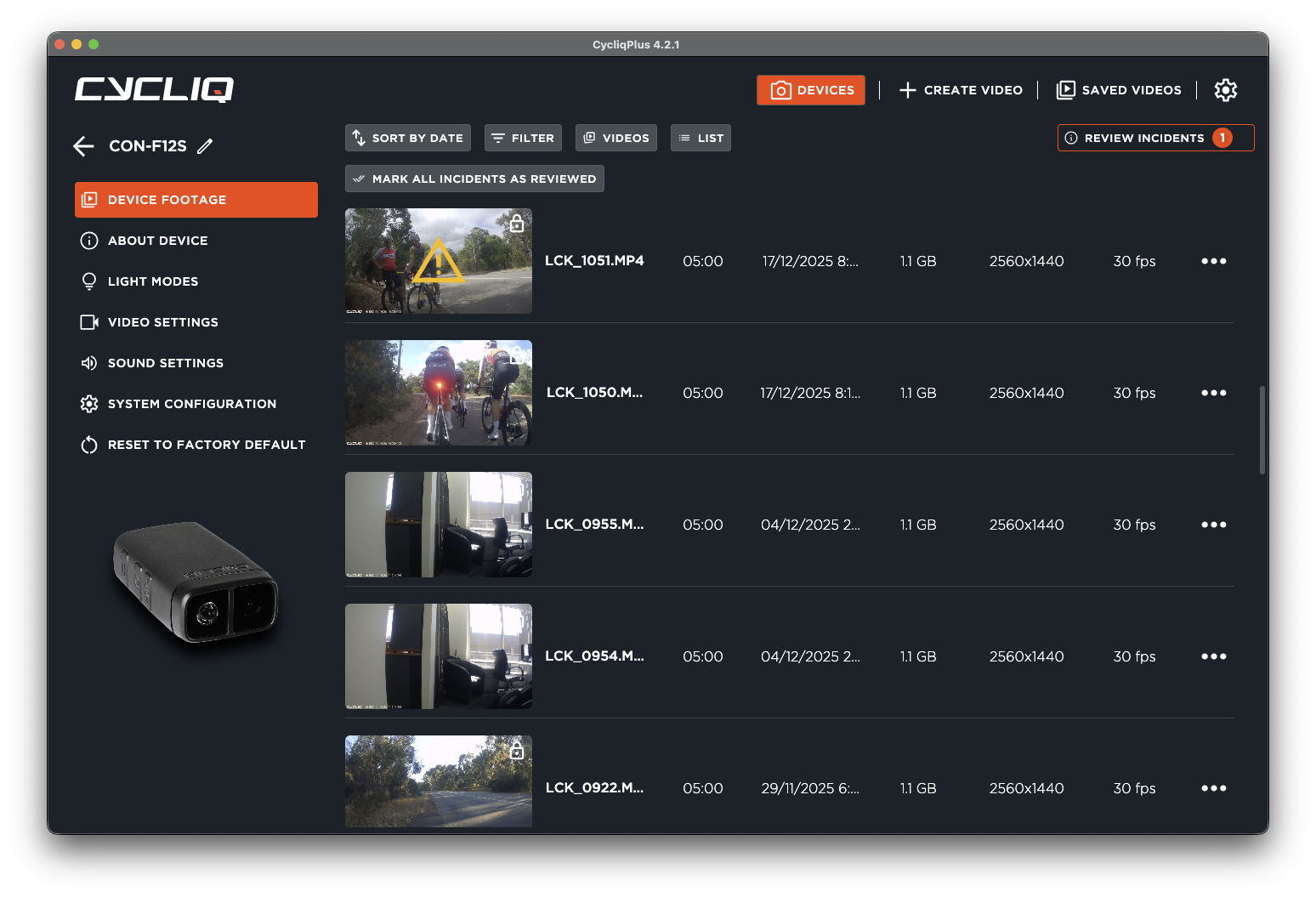
When opening a connected device, the app now takes you directly to Device Footage.
- Switch between Videos and Photos
- Choose different viewing modes including Thumbnails, Grid, List, and Strava Calendar
- Sort and filter footage by date, time, or locked status
- Preview and manage footage directly from the device
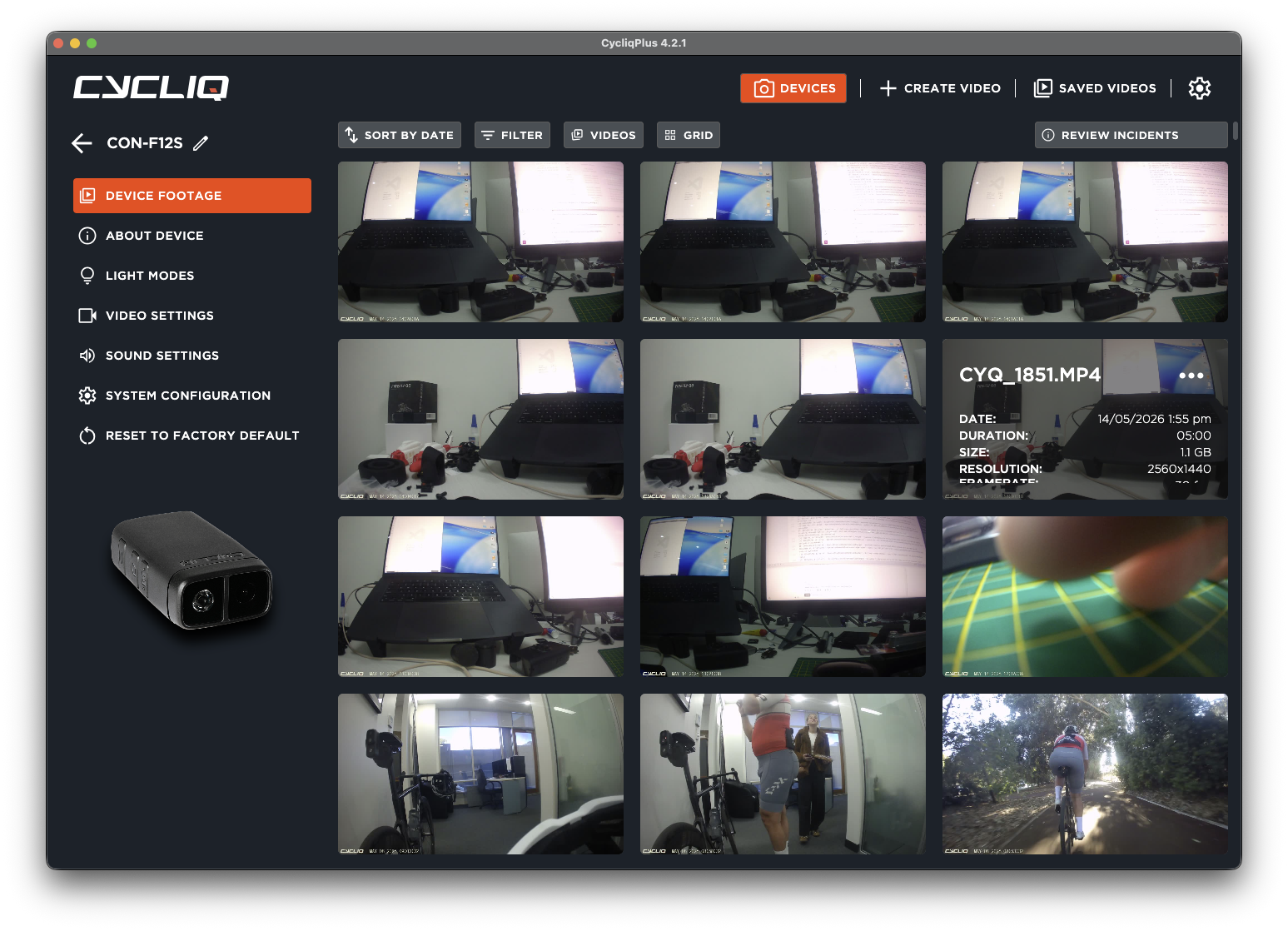
Review footage using multiple viewing layouts
Strava Calendar View
The Strava Calendar view links your footage with recorded Strava rides, making it easier to locate clips from a specific ride or location.
- View rides by calendar date
- See your GPS route on the map
- Jump directly to matching footage segments
- Navigate through clips from the selected ride
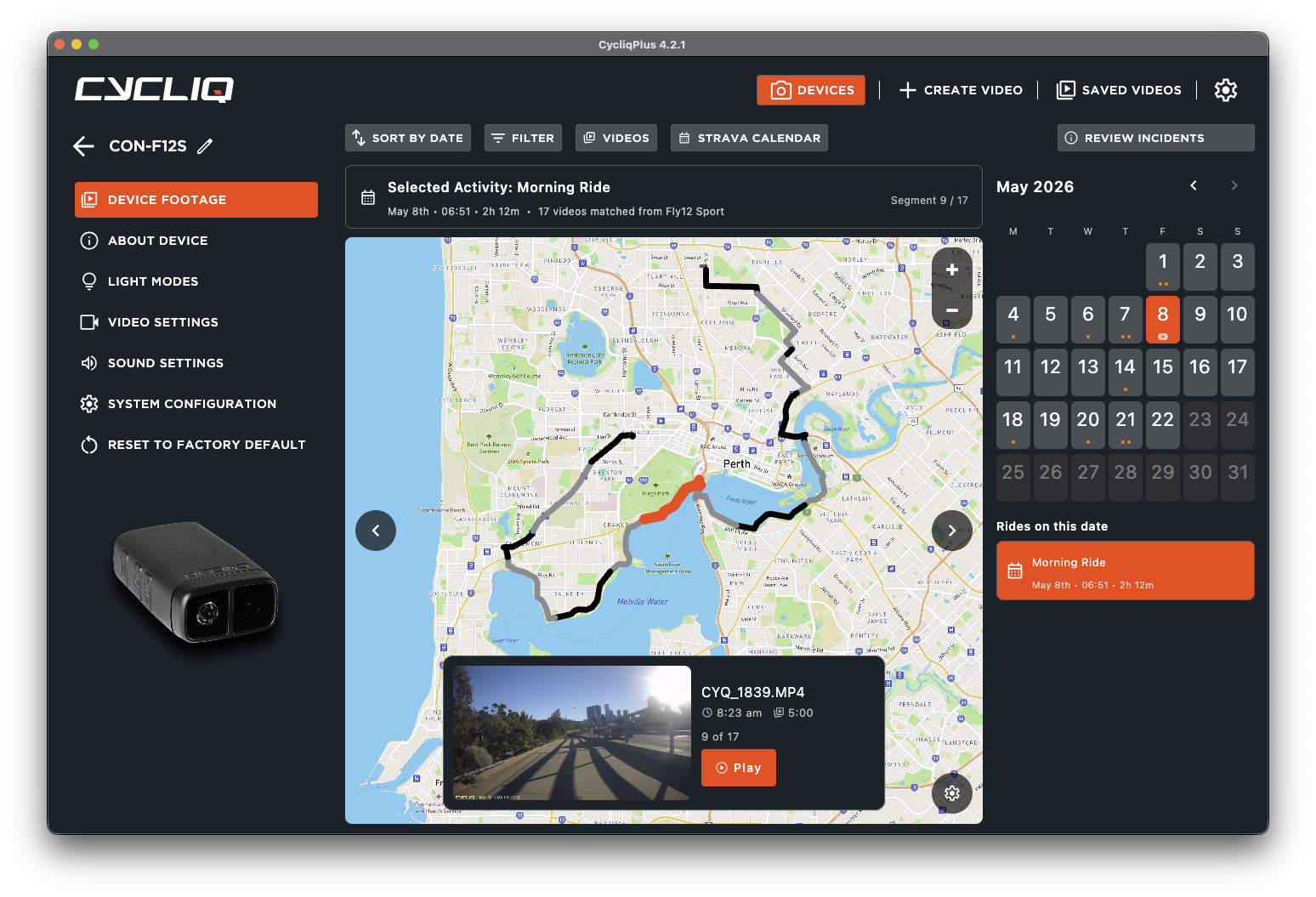
Match your footage with Strava ride data
Settings
Settings are now organised into categories so you can quickly find and adjust device options.
- Light Modes — configure light behaviour and brightness levels
- Video Settings — adjust resolution, stabilisation, timestamp, and segment length
- Sound Settings — control volume and recording alerts
- System Configuration — manage orientation, time sync, SD card formatting, and sleep settings
- Factory Reset — restore device defaults when needed
You can hover over the information icon beside settings for a quick explanation of each option.
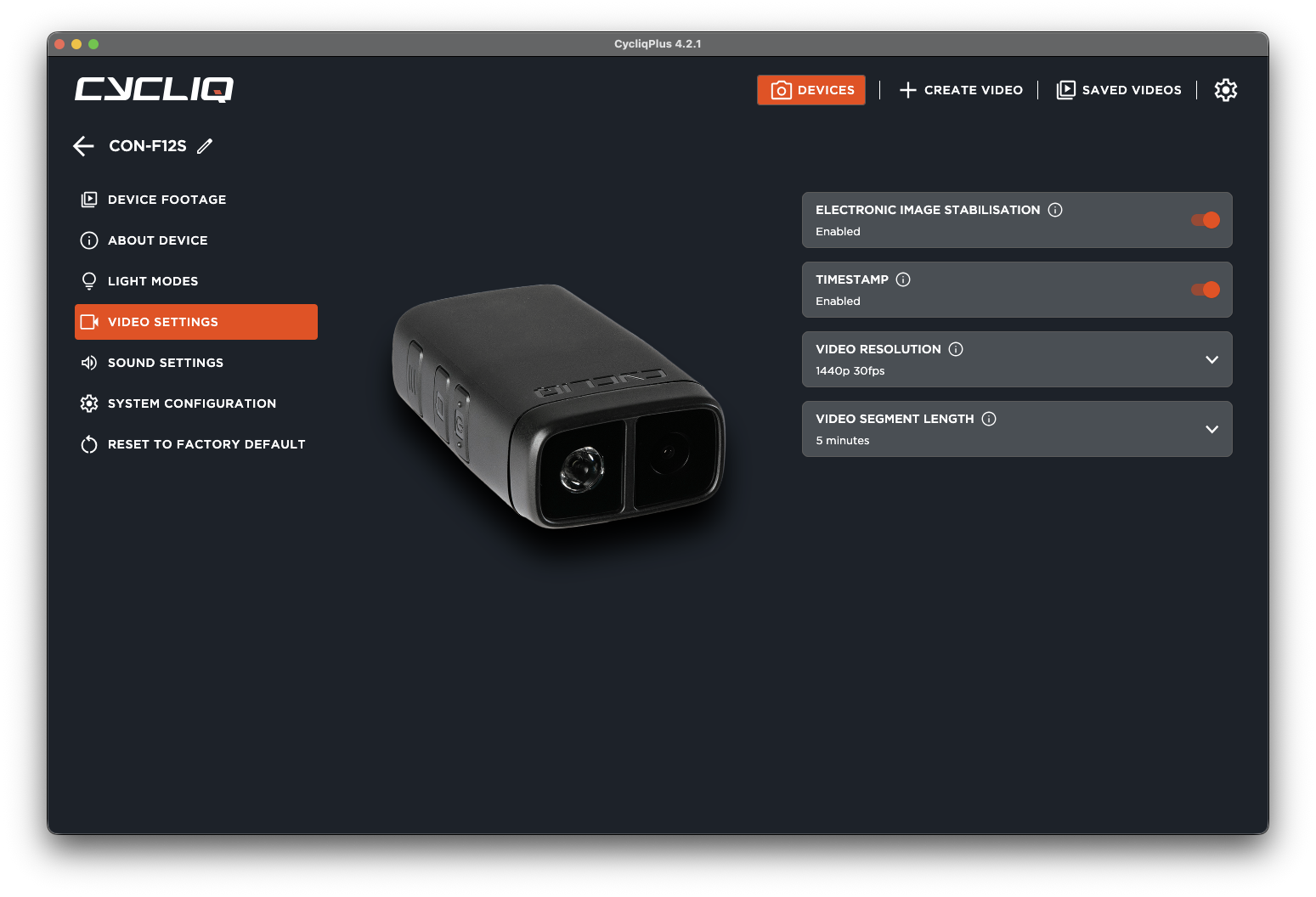
Settings are grouped into simple categories
About Device
The About Device screen gives you quick access to important information about your Cycliq camera, even when it’s offline.
- Device type and serial number
- Mounted storage information
- Locked footage storage usage
- Firmware versions and update status

View device information even while disconnected
Review Incidents
The Review Incidents screen helps you quickly locate footage that has been automatically locked by your device.
- Locked incident clips are highlighted for easy review
- Open clips directly at the incident moment
- Use Thumbnails, Grid, or List view modes while reviewing incidents
- Mark incidents as reviewed to clear notifications
Note: Reviewing incidents does not delete footage or free storage space. Locked files remain on the device until manually removed.
Review and manage locked incident footage