
Reading SD Cards in CycliqPlus MobileUpdated 28 minutes ago
Opening videos from the camera's SD card
You can read the footage on your camera's microSD card directly on your phone. This is useful when the camera won't connect, or when you want to copy clips without using Bluetooth or Wi-Fi.
There are two ways to do it.
Option 1: Use a microSD card reader
- Turn the camera off.
- Remove the microSD card from the camera.
- Put the card in a microSD card reader, and plug the reader into your phone. You may need a USB-C or USB adapter.
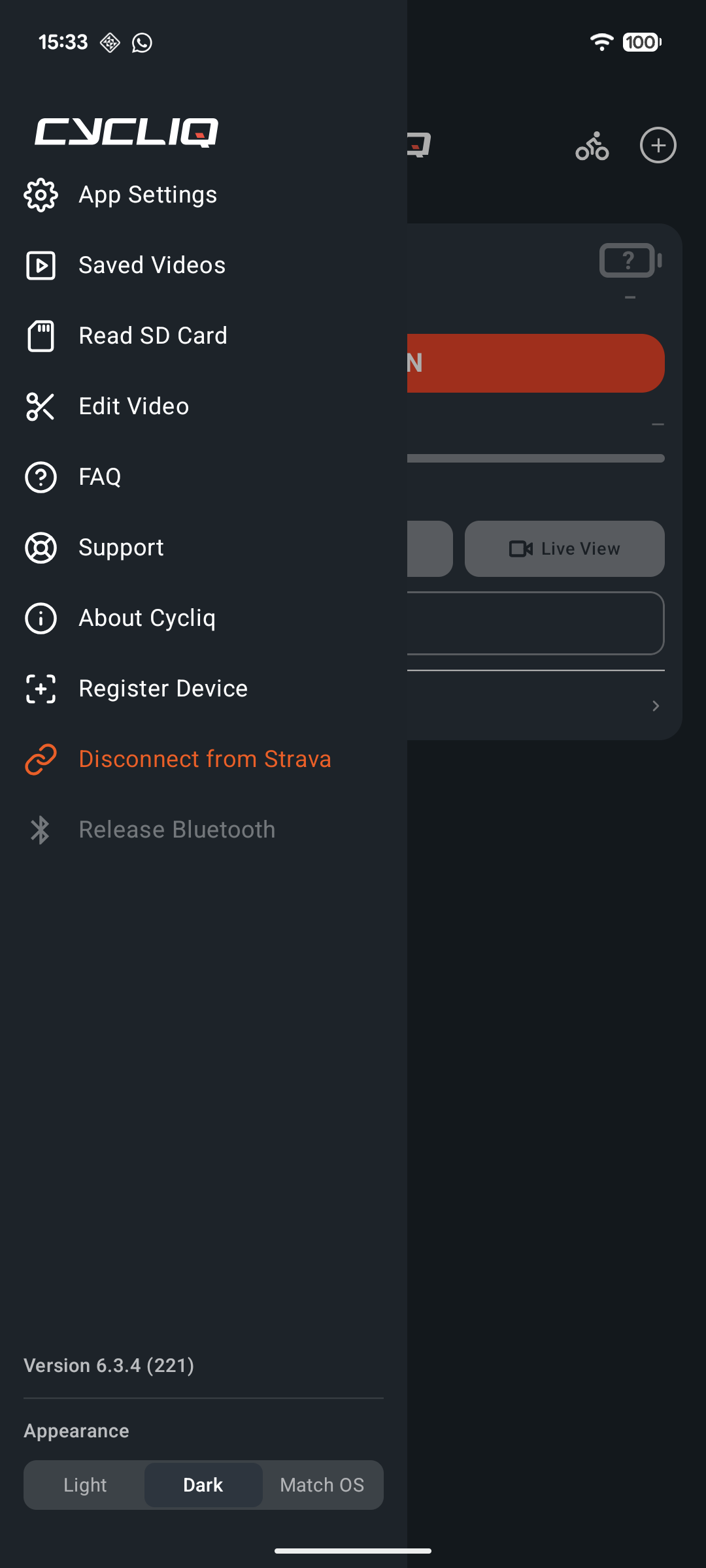
- Open CycliqPlus and go to the side menu. Tap Read SD Card.
- When asked, choose the top-level folder of the card, the one that contains the DCIM folder. Don't open DCIM or a folder inside it.
- Allow CycliqPlus access when Android asks for USB permission.
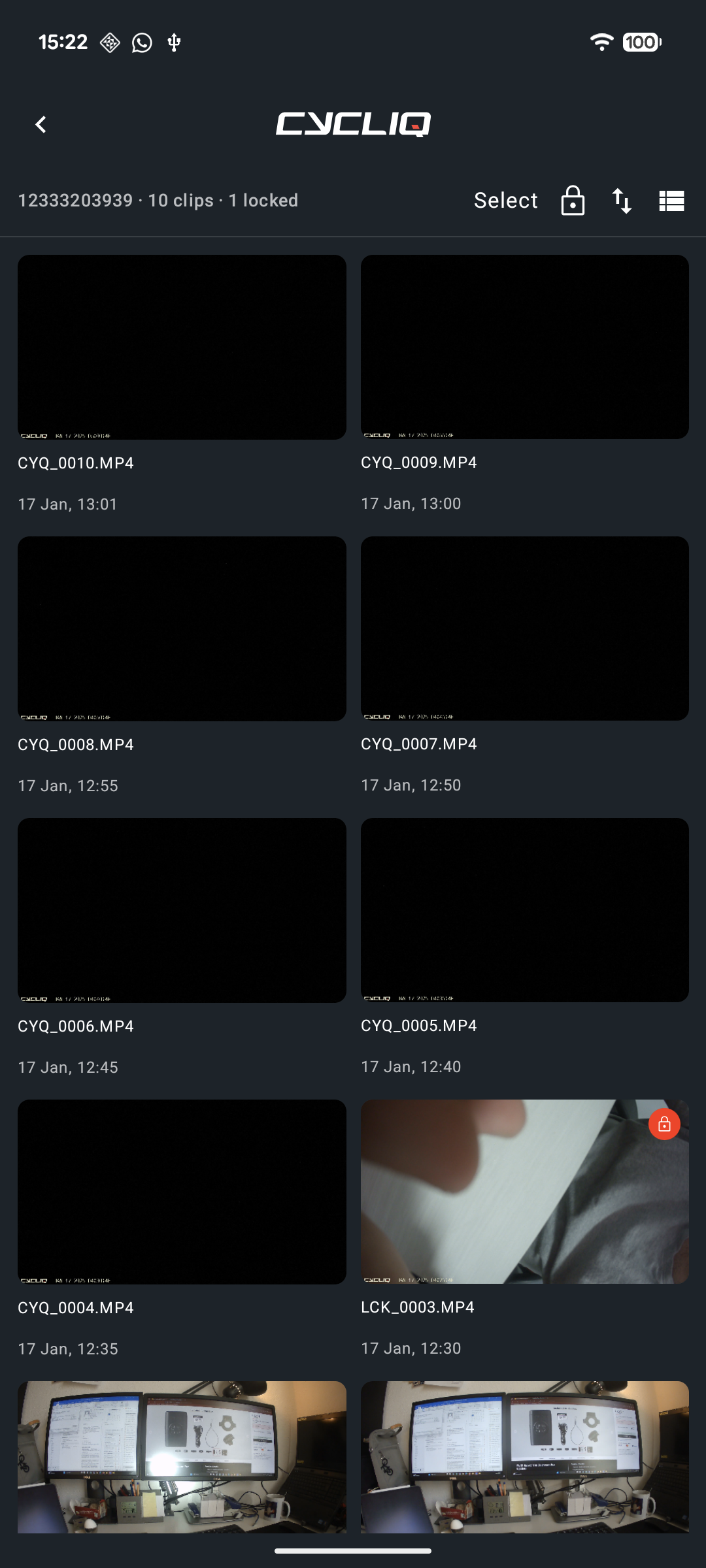
- Your clips appear in a list. Tap a clip to play it, or select clips to copy them to your phone.
Option 2: Use a computer
You can also connect the camera to a computer with the USB cable. The computer shows the card as a drive, and you can copy the files from the DCIM folder. While the camera is connected this way, it can't be controlled from the app, so unplug it when you're done.
Important
- Choose the card's top folder. If you open DCIM or a subfolder, CycliqPlus can't find the clips.
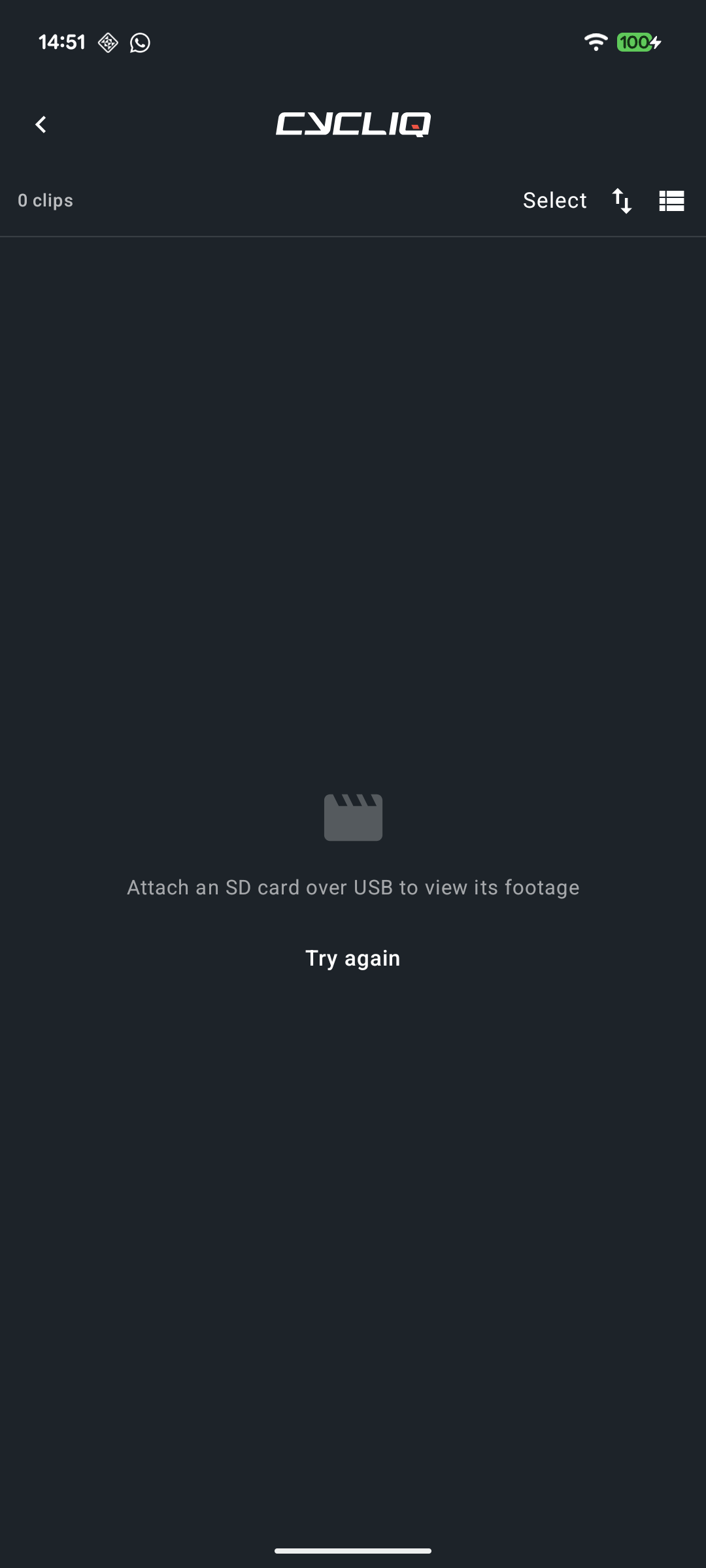
- Empty card. If you see "This card has no recordings in its DCIM folder", the card may have been formatted. Check the card in the camera.
- Deleting clips is permanent. Deleting from the SD card removes the clip from the card. CycliqPlus asks you to confirm first.
- Locked clips. The camera locks clips that are saved after an incident. Locked clips can't be overwritten by loop recording, so they take up space on the card. You can't change a clip's lock from the app when reading the card over USB.
- Loop recording. The camera overwrites the oldest unlocked clips when the card is full. Copy anything you want to keep to your phone.
Still can't open the card?
- Make sure the card reader is firmly connected, and try a different USB cable or adapter.
- Remove and reinsert the card, then tap Read SD Card again.
- If you see "Couldn't read card", check the card is inserted properly and try again.
- If you see "Folder access was denied", tap Read SD Card again and allow access to the card.
For connection problems with the camera itself, see Troubleshooting connection issues.